
Wake up time7:30 AM
Apps blocked5
Choose your wake up
Set your wake time and pick the apps that should stay blocked when your night routine starts.
 Lumi
LumiLumi blocks bedtime distractions and keeps your alarm ringing until you physically get up and scan your Dock across the room.
Morning and night
Set your wake time and pick the apps that should stay blocked when your night routine starts.

When it is time to sleep, Lumi blocks the apps you selected so your phone stops pulling you back in.
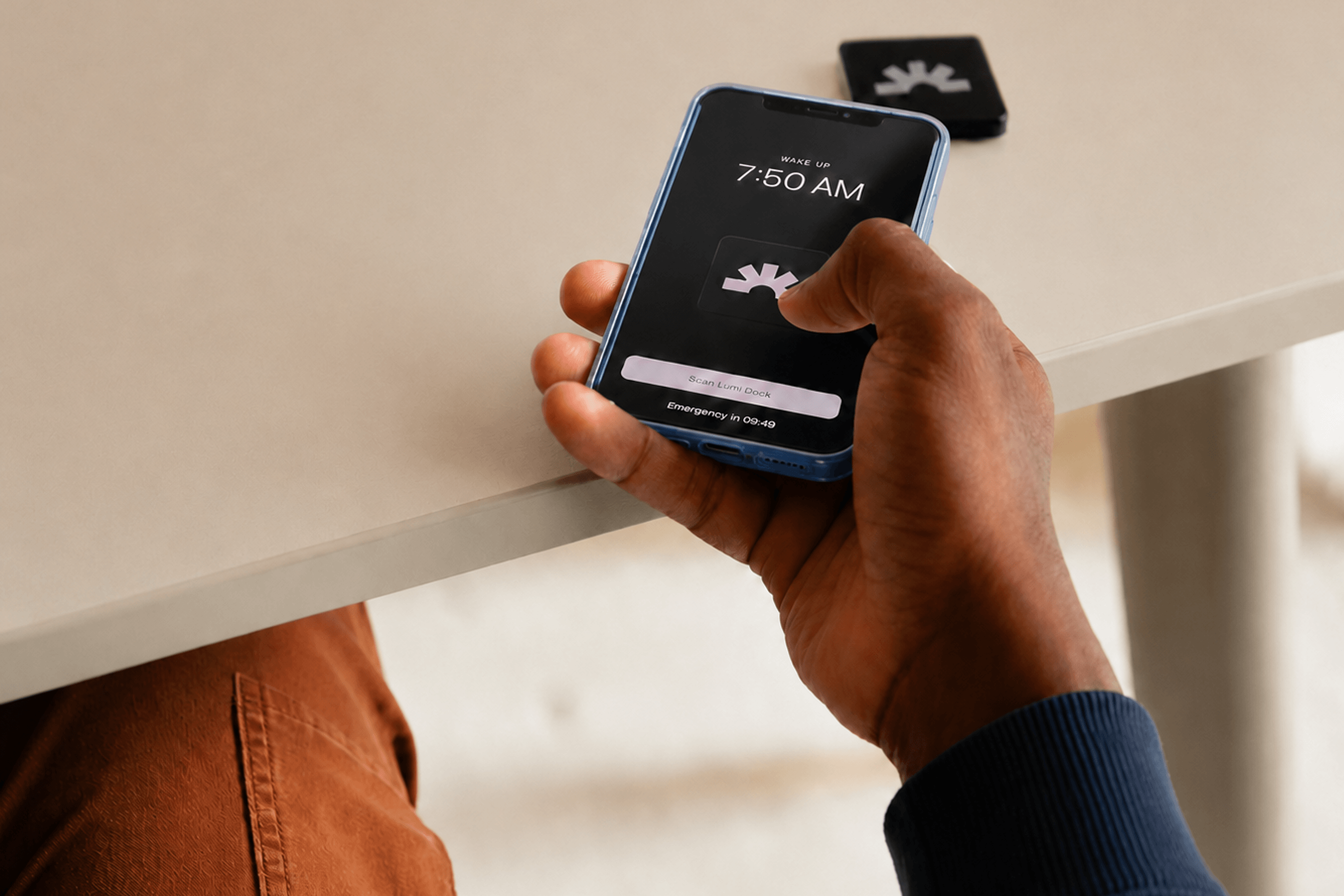
In the morning, the alarm keeps ringing until you get up and scan your Lumi Dock across the room.
Throughout the day
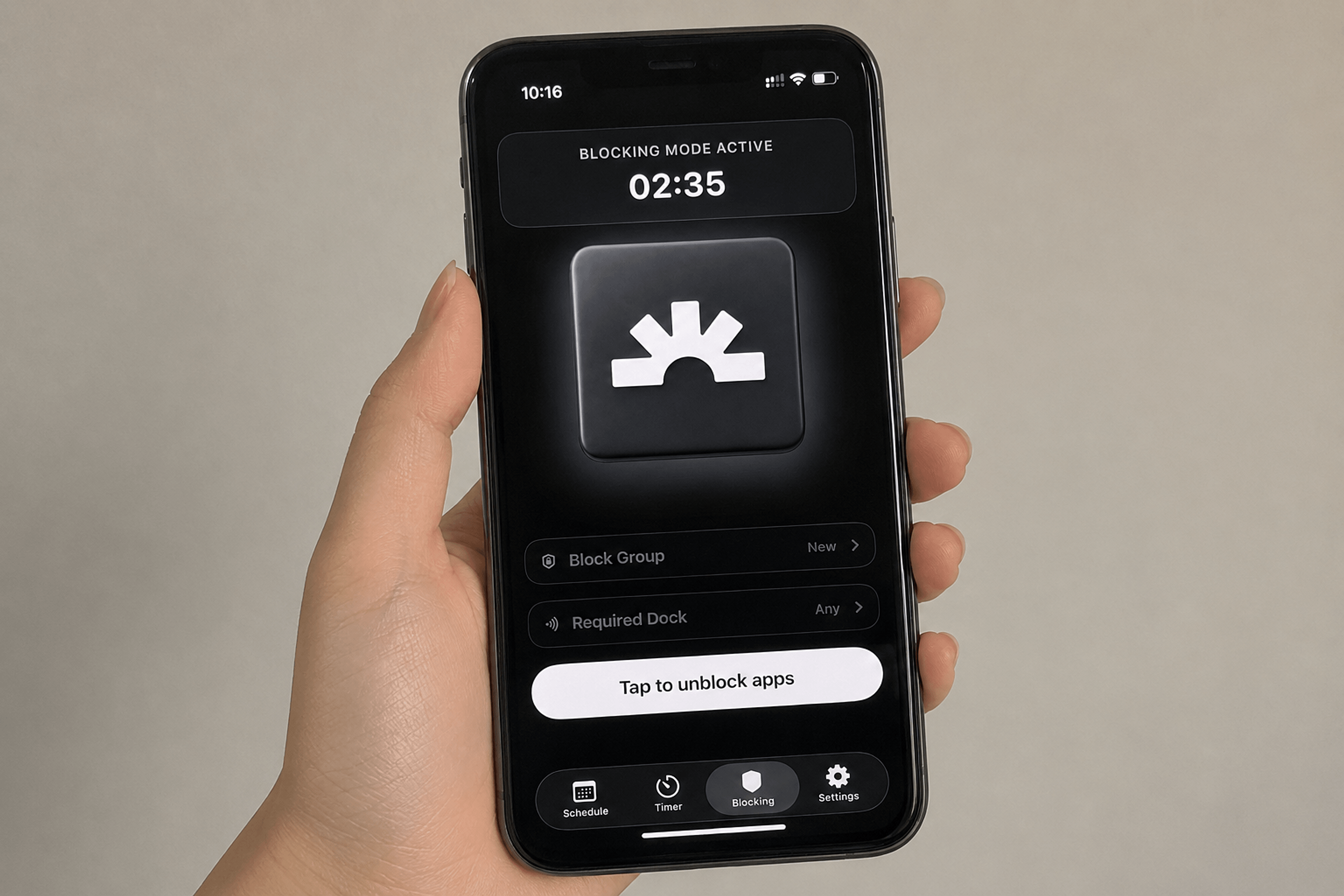
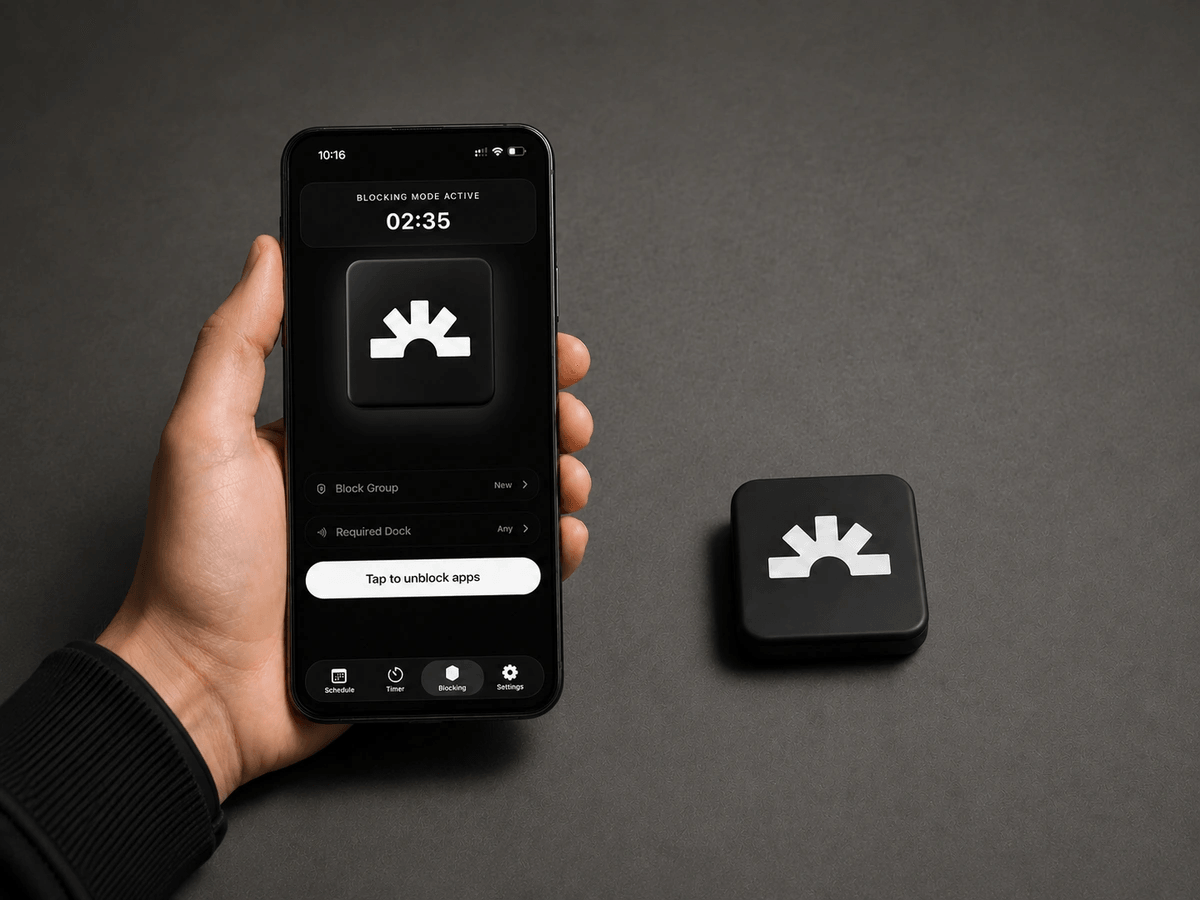
Start a focus block with one tap. Your distracting apps stay sealed until you tap your Lumi Dock again.

Use Lumi Dock to dismiss.
Use timers to block apps, guard a work session, or create an alarm that requires a dock scan to end.

Build days where your phone supports your goals instead of pulling you away from the plan.
Real stories, real results
Stories from people rebuilding their mornings with Lumi.
Easier
Wake up when you planned to
Focused
Keep distracting apps out of the way
Less
Make screen time feel more intentional

Easier
Wake up when you planned to

Focused
Keep distracting apps out of the way

Less
Make screen time feel more intentional
Built to stay simple
Buy Lumi once and keep using the mobile app and dock without another monthly fee getting in the way.
No cable, charging habit, or battery anxiety. Your Lumi Dock is ready whenever a routine needs a real-world scan.
Share one Lumi Dock with multiple phones, or pair multiple docks to one phone for your bed, desk, and shared spaces.
FAQ
A normal alarm can be dismissed from bed. A Lumi alarm can require a scan of your paired Lumi Dock, so dismissing it means physically getting up and walking to wherever you placed the dock.
Screen Time limits can be overridden with a tap. Lumi can require a physical dock scan to pause or end protected blocking sessions, so the easiest path is the one you planned in advance.
It's an NFC-based physical key. Your phone must scan it to dismiss dock-required alarms, cancel strict timers, take schedule-blocking breaks, or toggle protected app blocks. Lumi validates that it's your official paired dock.
Lumi is available on iPhone now, and the Android app is coming soon in August.
The app includes emergency passes for exceptional situations. You can also unpair old docks and pair a replacement dock from Settings.
Lumi Dock orders use secure Shopify checkout. Orders of 2+ Lumi Docks include free shipping, with final delivery options confirmed at checkout.
Yes. Lumi is designed for flexible setups, so you can keep a Dock by the bed, at your desk, or wherever a protected routine should end.
Yes. A Dock can support more than one phone, so shared spaces can use one physical scan point.